
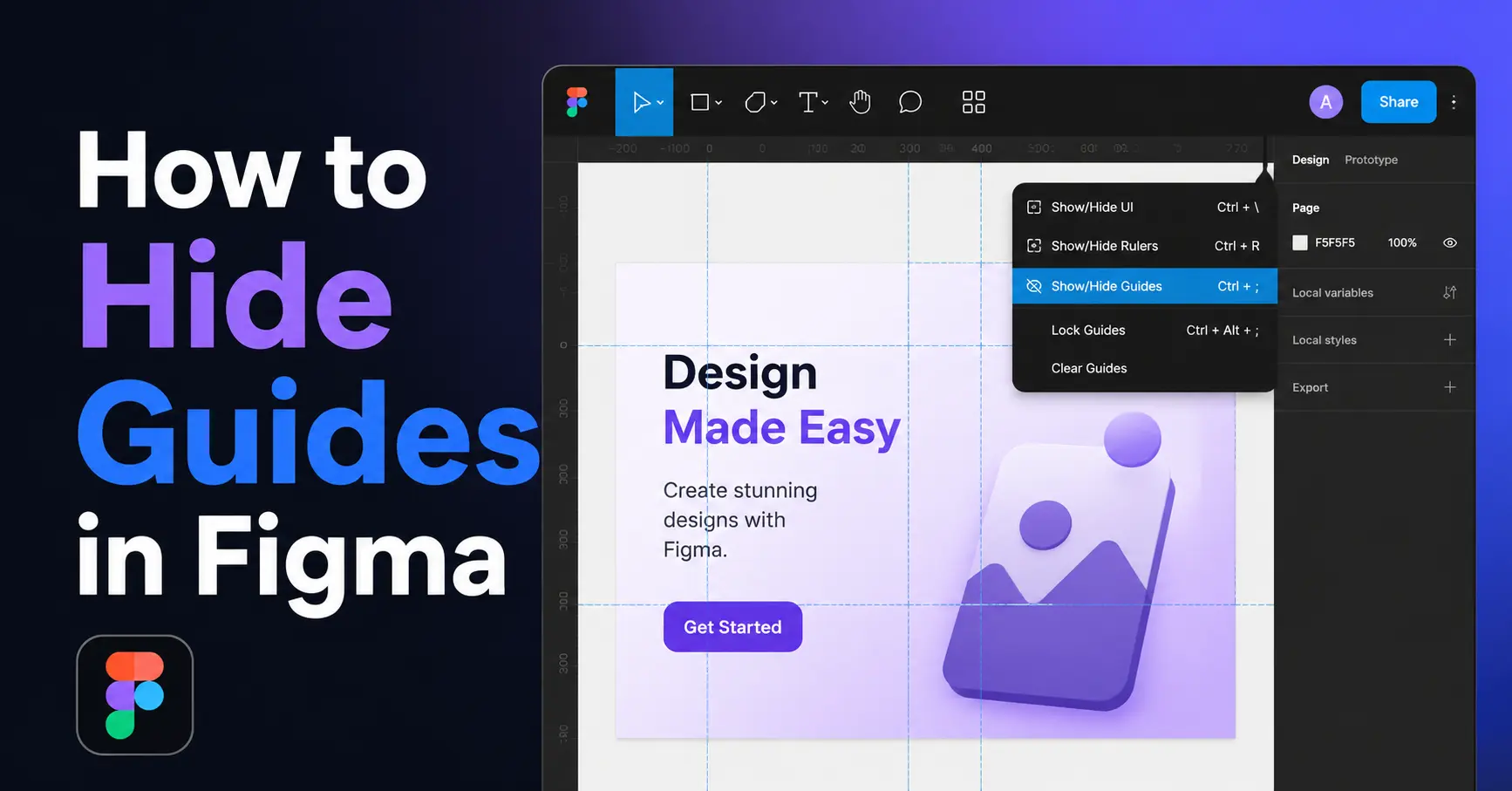
How to Hide Guides in Figma guides are incredibly useful when you’re building layouts but once you’re done aligning elements, those blue lines can get in the way of seeing your actual design clearly.
Whether you’re doing a final review, sharing a screenshot, or just need a cleaner canvas to think, knowing how to hide guides in figma is a small trick that saves real frustration.
This guide covers every method available from the fastest keyboard shortcut to removing guides permanently so you can pick the approach that fits your workflow.
Table of Contents
| Section | Topic |
|---|---|
| 1 | What Are Guides in Figma |
| 2 | Method 1: Use the Keyboard Shortcut (Fastest Way) |
| 3 | Method 2: Use the View Menu |
| 4 | Method 3: Remove a Specific Guide Permanently |
| 5 | Method 4: Delete All Guides at Once |
| 6 | Hiding Guides vs. Hiding Rulers: What’s the Difference? |
| 7 | When Should You Hide Guides |
| 8 | Quick Reference: Guide Controls in Figma |
| 9 | Wrapping Up |
| 10 | Frequently Asked Questions |
| 11 | Final Thoughts |
What Are Guides in Figma

Guides in Figma are horizontal and vertical alignment lines that help designers position and organize elements accurately on the canvas. You can create them by dragging from the rulers located along the top and left edges of the workspace.
These guides are non-printing, which means they are visible only while you are designing and never appear in exported images, PDFs, or prototypes. They are especially useful for maintaining consistent spacing.
Aligning objects, and creating balanced layouts. Understanding what guides are and how they work is the first step before learning how to hide guides in Figma, as they play an important role in keeping your designs clean, precise, and professionally aligned.
Method 1: Use the Keyboard Shortcut (Fastest Way)
This is the method most designers don’t know about and once you do, you’ll use it constantly.
Press Shift + R on both Mac and Windows.
That’s it. One shortcut toggles rulers and guides on and off instantly. Press it again to bring them back.
Pro tip: This shortcut is a toggle your guides aren’t deleted, just hidden. All your alignment work is preserved and ready when you need it again.
Method 2: Use the View Menu
If you prefer working through menus rather than memorizing shortcuts, the View menu has you covered.
- Click Main Menu (the Figma logo icon in the top-left corner of the screen)
- Hover over View
- Click Rulers
This toggles both the rulers and guides off. You’ll see the ruler strips on the top and left edges disappear along with any guide lines you’ve placed.
To restore them, follow the same path and click Rulers again it works as a toggle.
Method 3: Remove a Specific Guide Permanently

Sometimes you don’t want to just hide guides temporarily you want to delete one specific guide that’s no longer useful.
Here’s how:
- Hover over the guide line until your cursor changes to a double-headed arrow
- Right-click on the guide line
- Click “Remove guide” from the context menu that appears
Alternatively, you can click and drag the guide line back toward the ruler (left edge for vertical guides, top edge for horizontal guides) until it snaps back and disappears.
Note: This permanently removes the guide. Unlike hiding, you can’t bring it back with a shortcut you’d need to drag out a new one.
Method 4: Delete All Guides at Once
Got a canvas full of guides you no longer need? You can clear them all in a few clicks.
- Click Main Menu (Figma logo)
- Hover over Edit
- Click Delete All Guides
This removes every guide on the current page instantly. Great for cleaning up after you’ve finalized a layout.
Hiding Guides vs. Hiding Rulers: What’s the Difference
This trips up a lot of people, so it’s worth clarifying:
- Rulers are the measurement strips along the top and left edges of the canvas. They show coordinates and let you drag out new guides.
- Guides are the lines themselves that you’ve placed on your canvas.
In Figma, you can’t hide guides without also hiding the rulers they’re controlled by the same toggle (Shift + R or View › Rulers). There is currently no native option to hide guides independently while keeping the ruler strips visible.
If you need rulers visible (e.g., for spacing reference) but want a cleaner canvas, your best option is to delete the specific guides you don’t need rather than hiding them.
When Should You Hide Guides

Here are the most common situations where hiding guides makes sense:
- Final design review Guides can visually clutter the design when you’re checking spacing and hierarchy.
- Client presentations A clean canvas looks more professional when walking stakeholders through a design.
- Screenshots for documentation Exported frames won’t show guides, but if you’re screenshotting the canvas, hiding guides avoids confusion.
- Focus mode When you’re in a creative flow and alignment helpers are breaking your concentration.
Quick Reference: Guide Controls in Figma
| Action | How to Do It |
|---|---|
| Show or hide all guides and rulers | Press Shift + R |
| Show or hide guides using the menu | Main Menu → View → Rulers |
| Remove a single guide | Right-click the guide → Remove Guide |
| Delete a guide by dragging | Drag the guide back to the top or left ruler until it disappears |
| Delete all guides | Main Menu → Edit → Delete All Guides |
| Restore hidden guides | Press Shift + R again or enable View → Rulers |
Wrapping Up
Hiding guides in Figma is simple once you know where to look. The Shift + R keyboard shortcut is the fastest route for toggling guides on and off during your workflow. If you need to permanently clean up your canvas, right-clicking individual guides or using the “Delete All Guides” menu option gives you full control.
The key thing to remember: hiding guides doesn’t delete them. Your layout work stays intact, and you can bring everything back whenever you need it.
Frequently Asked Questions
How do I hide guides in Figma?
You can hide guides by turning off guide visibility from the View menu or by using the appropriate keyboard shortcut, depending on your operating system.
What is the difference between guides and layout grids in Figma?
Guides are alignment lines you place manually using rulers, while layout grids are structured columns, rows, or grids commonly used for UI and responsive design.
Does hiding guides delete them?
No. Hiding guides only makes them invisible while you work. They remain in your file until you remove them manually.
Can I hide guides for a single frame?
Guides are generally managed at the canvas or frame level depending on how they were created, while layout grids can be shown or hidden for individual frames.
Why should I hide guides in Figma?
Hiding guides lets you preview your design without alignment lines, making it easier to review spacing, visual balance, and the final appearance before sharing or exporting.
Final Thoughts
Knowing how to hide guides in Figma can help you create a cleaner and more focused design workspace without permanently removing your alignment references. Whether you are working on a UI design, website mockup, or graphic project.
Temporarily hiding guides allows you to preview your design as users will see it while keeping your guides available for later use. By understanding the difference between guides, rulers, and layout grids.
You can switch between editing and reviewing your designs more efficiently using Figma’s built-in visibility options and keyboard shortcuts will also speed up your workflow and improve productivity.
You May Also Like It:
The Tech Yourself How to Guides Mist Gamer Purchase
How to Use French Tip Guides With Gel Polish
