
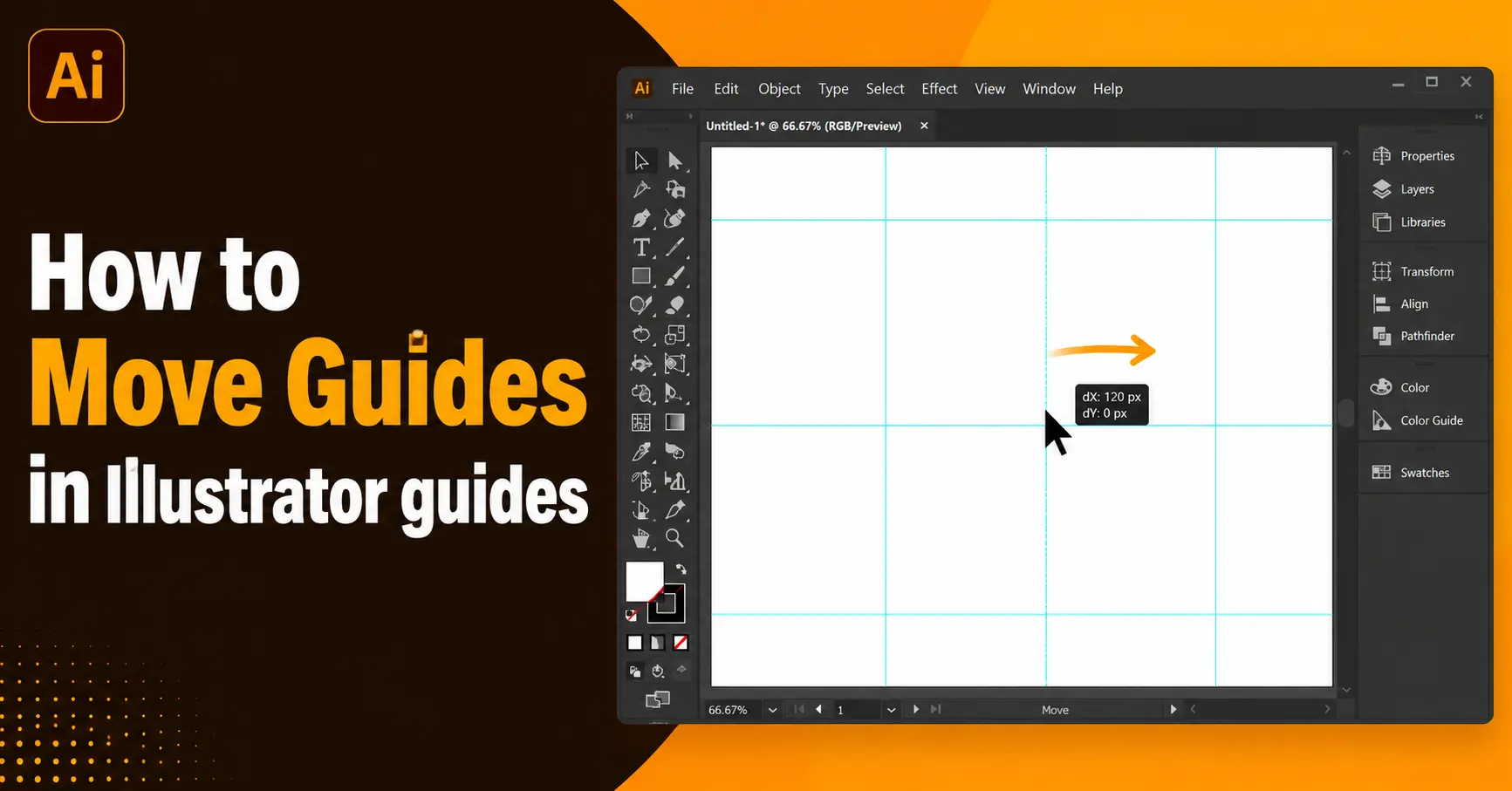
How to Move Guides in Illustrator guides keep your Illustrator artwork aligned. But a guide stuck in the wrong spot slows you down. This guide shows every way to move guides in Illustrator. It also covers problems other tutorials skip like guides that refuse to move or guides tied to an artboard.
Adobe Illustrator is a popular design program used to create logos, illustrations, social media graphics, and many other types of artwork. When working on a design, guides can help you keep everything aligned and organized. If you are new to Illustrator, you may wonder how to move guides or why they sometimes cannot be moved.
This beginner-friendly guide explains everything you need to know about moving guides in Illustrator.
What Are Guides in Illustrator
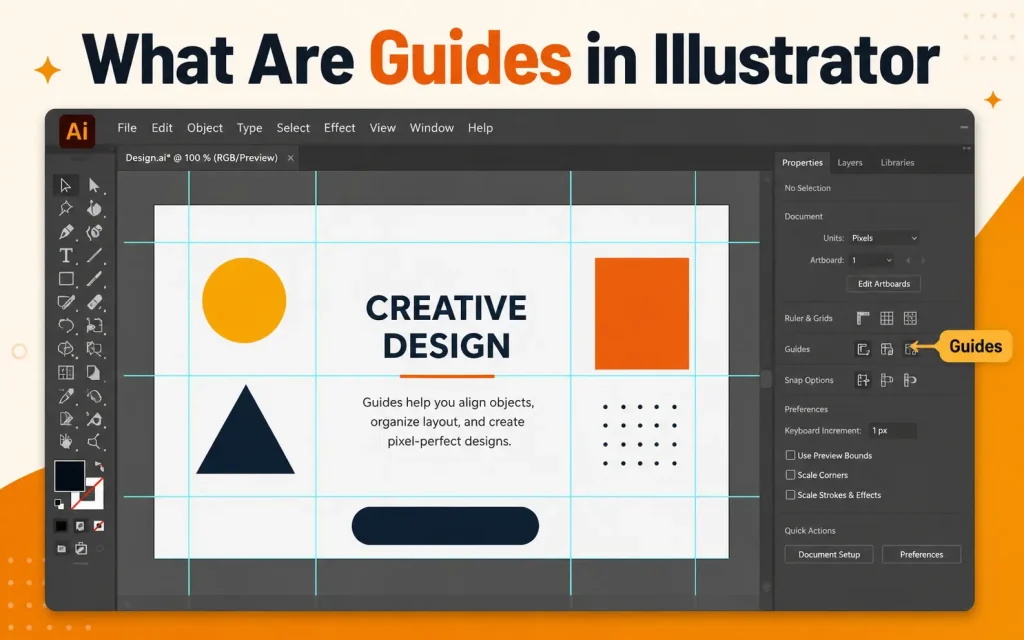
Guides are non-printing lines you place on the artboard. Designers use them to line up text boxes logos and shapes. They never print or export with your final file. Think of them as an invisible ruler that stays on screen while you work.
Guides are reference lines that help you place objects accurately on the artboard. They are not part of your final design and will not appear when you export or print your work.
Guides make it easier to align text, images, shapes, and other design elements.
Before You Move a Guide Check This First
Most people get stuck because their guides are locked. Locked guides cannot be selected dragged or deleted.
Here is how to check:
- Open the View menu
- Hover over Guides
- Look at Lock Guides
- If a checkmark sits next to it click to remove it
You can also press Control Alt Semicolon on Windows or Command Option Semicolon on Mac. This shortcut toggles the lock instantly.
Method 1: Drag a Guide With the Selection Tool
This is the fastest way to move a single guide.
- Press V to grab the Selection Tool
- Click directly on the guide line
- Hold the mouse button and drag it to the new position
- Release the mouse to drop the guide
A horizontal guide moves up and down. A vertical guide moves left and right. You cannot drag a guide diagonally because guides only travel along one axis.
Method 2: Move a Guide With Exact Numbers
Dragging by eye is fine for rough layouts. But print and web design often need pixel perfect placement. For that use the Move dialog box.
- Select the guide with the Selection Tool
- Go to Object then Transform then Move
- Type the exact horizontal or vertical distance you need
- Click OK
This method treats the guide like any other path so the numbers apply exactly. It is the most overlooked trick because most beginner tutorials never mention it.
Method 3: Move Several Guides at Once
You rarely move just one guide on a real project. Here is how to shift a whole group together.
- Click on empty space near your first guide and drag a selection box around the guides you want
- Hold Shift and click any extra guides you missed
- Once everything is highlighted click and drag any one of the selected guides
- All selected guides shift together while keeping their spacing
This keeps your layout grid intact even when the whole composition needs to shift.
Method 4: Move Guides Using the Layers Panel
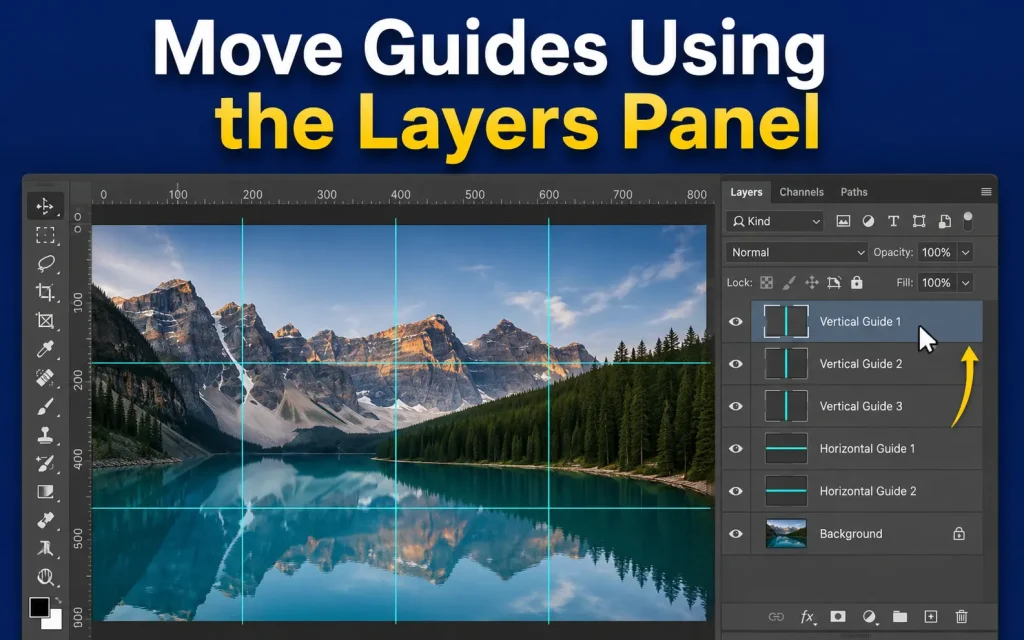
Few articles mention this option but it is the cleanest way to manage guides in a busy file.
- Open Window then Layers
- Expand the layer that holds your guides
- Click the guide entry to select it on the canvas
- Drag it on the artboard as usual
This method is useful when guides overlap with artwork and you cannot click the line directly without grabbing the wrong object.
How to Move a Guide When It Is Attached to an Artboard
This is the part most competing articles leave out completely.
Guides created with the Artboard Tool are tied to that specific artboard. If you try to drag them with the regular Selection Tool nothing happens because the tool is locked to artboard editing mode.
To move these guides:
- Press Escape or switch to the Selection Tool V to exit Artboard editing mode
- Confirm guides are unlocked through View then Guides then Lock Guides
- Click and drag the guide normally
If the guide still will not budge check whether it sits on a locked layer rather than just a locked guide setting. Unlock the entire layer through the Layers panel and try again.
Common Problems and Fixes
| Problem | Likely Cause | Fix |
|---|---|---|
| Guide will not move at all | Guides are locked | Go to View then Guides then uncheck Lock Guides |
| Guide moves the whole artboard instead | Artboard Tool is still active | Press V to switch to the Selection Tool |
| Cannot click the guide | Guide sits behind artwork | Select it from the Layers panel instead |
| Guide snaps to a strange spot | Snap to Grid or Snap to Point is on | Go to View and turn off Snap to Grid |
| Guide disappears after moving | It was dragged off the artboard edge | Use Object then Transform then Move to bring it back with exact numbers |
| Multiple guides move unevenly | Guides on different layers were selected together | Group your guides on one layer before moving them as a set |
How to Move Guides on a Locked Layer
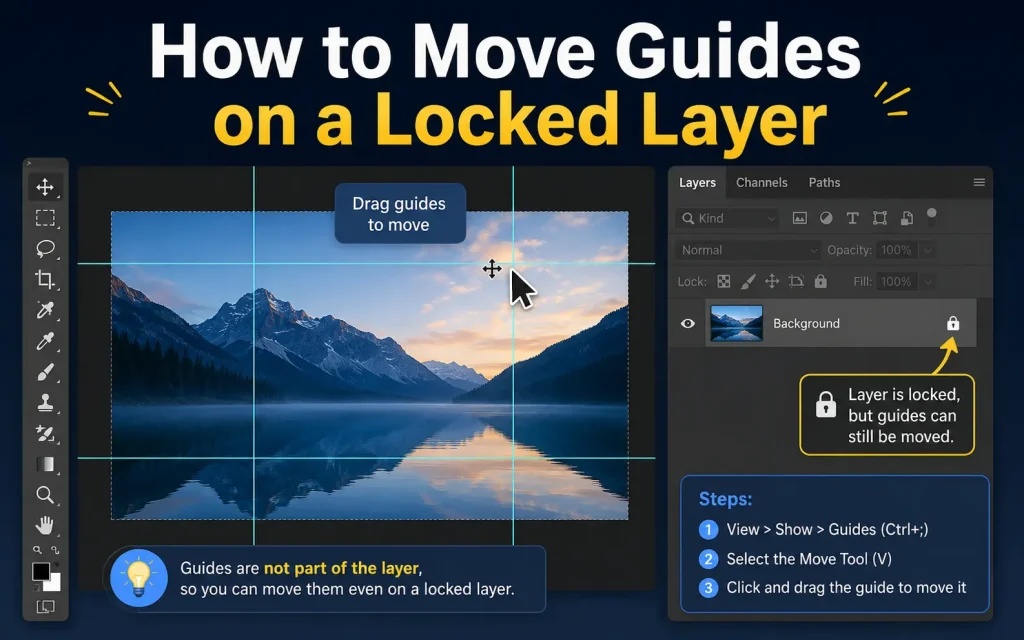
If your guides sit on a layer that is locked rather than using the guide lock setting alone you need an extra step.
- Open the Layers panel
- Find the lock icon next to the layer holding your guides
- Click it to unlock the layer
- Now follow any method above to move your guides
Skipping this step is the number one reason designers think Illustrator guides are broken when they are simply locked at the layer level.
Quick Keyboard Shortcuts for Working With Guides
| Action | Windows | Mac |
|---|---|---|
| Show or hide guides | Control Semicolon | Command Semicolon |
| Lock or unlock guides | Control Alt Semicolon | Command Option Semicolon |
| Create guide from selection | Control 5 | Command 5 |
| Release guide back to a normal path | Control Alt 5 | Command Option 5 |
| Clear all guides | View then Guides then Clear Guides | View then Guides then Clear Guides |
Tips for Working With Guides Like a Pro
- Name your guide layer something clear like Guides so you can find it fast in busy files
- Group related guides before moving them so spacing never shifts by accident
- Use Object then Transform then Move for any layout that needs print accurate measurements
- Turn off Snap to Grid if guides keep jumping to spots you did not choose
- Save a guide template file if you reuse the same grid across multiple projects
FAQs
Can I delete guides in Illustrator?
Yes. Select the guide and press Delete on your keyboard. You can also remove all guides by going to View > Guides > Clear Guides.
How do I hide guides in Illustrator?
Choose View > Guides > Hide Guides. This temporarily hides all guides without deleting them.
What is the shortcut for showing or hiding guides in Illustrator?
Press Ctrl + ; (Windows) or Command + ; (Mac) to quickly show or hide guides.
Can I create custom guides in Illustrator?
Yes. Simply drag a guide from the ruler area onto your artboard. If rulers are not visible, press Ctrl + R (Windows) or Command + R (Mac).
Do guides print with artwork?
No. Guides are only visible while designing and do not appear in printed or exported files.
Final Thoughts
Moving guides in Illustrator is simple once you know where the lock settings hide and how artboard guides behave differently from regular guides. Use dragging for fast adjustments and the Move dialog box for precise layouts. If a guide refuses to move check the guide lock first then the layer lock then confirm you are not still in Artboard editing mode.
Moving guides in Illustrator is a simple but essential skill that helps improve design accuracy and workflow efficiency. If you cannot move a guide, the most common reason is that it is locked. By unlocking guides, selecting them with the Selection Tool, and dragging them to a new position.
It May Be Also Like It:
How to Communicate With Spirit Guides
Best Retailers for Cordless Power Tools How-To Guide
