
How to Hide Guides in Photoshop guides are thin, non-printing lines that help you align text, images, and design elements in Photoshop. They are incredibly useful while you build a layout, but they can clutter your screen once the design is finished or when you want a clean preview of your artwork.
This guide shows you every way how to hide guides in Photoshop, including keyboard shortcuts, menu commands, and settings for grids and Smart Guides. It also covers troubleshooting steps for situations where guides will not disappear, plus tips that most other tutorials leave out.
Table of Contents
- What Are Guides in Photoshop
- Fastest Way to Hide Guides (Keyboard Shortcut)
- Hide Guides Using the Menu
- Hide Grids and Smart Guides
- Hide All Extras at Once
- Difference Between Hiding and Deleting Guides
- Common Problems and Fixes
- Hide Guides on Mac vs Windows
- Pro Tips for Working with Guides
- Frequently Asked Questions
What Are Guides in Photoshop
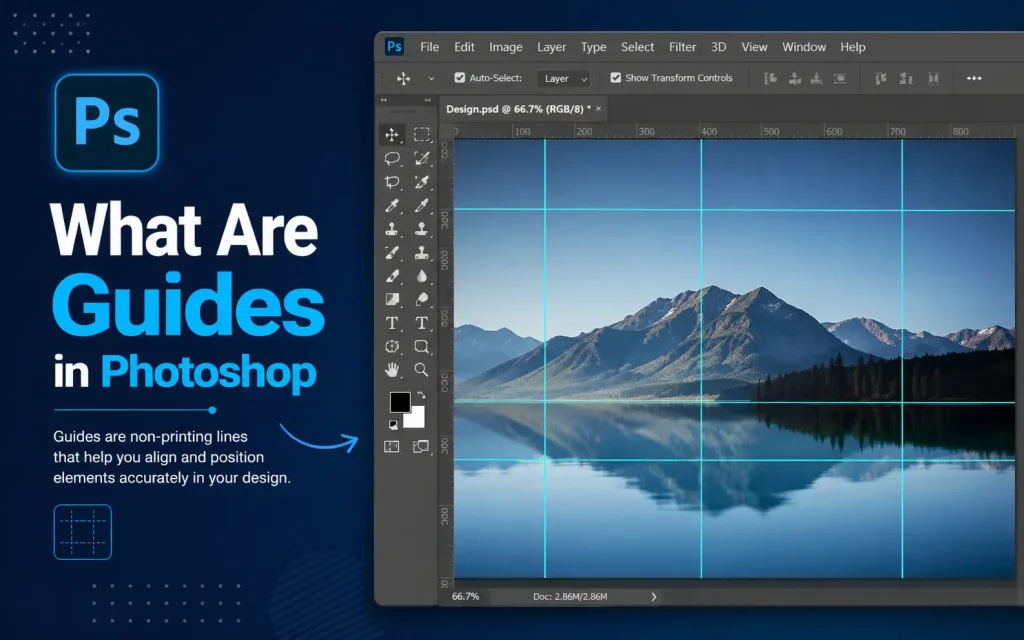
Guides are straight horizontal or vertical lines that snap your cursor into place so you can align objects with precision. You create them through the Ruler, the View menu, or the New Guide dialog box. Guides never print and never export with your final image, so leaving them visible only affects your editing view, not your output.
Even though guides do not appear in exported files, many designers still prefer to hide them while presenting a design to a client, taking a screenshot, or simply working in a cleaner workspace.
How to Hide Guides in Photoshop
Hiding guides in Photoshop is a simple process that helps you clean up your workspace without deleting anything. You can quickly toggle guides on or off using a keyboard shortcut or the View menu, depending on what you find easier.
This feature is especially useful when you are finishing your design and want to see the final result without any visual distractions. In the following steps, we will look at the easiest methods to hide guides and manage your workspace more efficiently.
Fastest Way to Hide Guides The Keyboard Shortcut
The quickest method to hide guides in Photoshop is a single keyboard shortcut. This works in every recent version of Photoshop, including the 2024, 2025, and 2026 releases.
| Operating System | Shortcut |
| Windows | Ctrl + H |
| Mac | Cmd + H |
Press this shortcut once to hide all guides instantly. Press it again to bring them back. The shortcut acts as a toggle, so you do not need to remember separate commands for hiding and showing.
Important: On Mac, Cmd + H is also the system shortcut to hide the active application. If pressing it hides Photoshop instead of your guides, check the Show Extras Options described in the next section and make sure the correct shortcut is assigned in Photoshop’s menu.
How to Hide Guides Using the Menu
If you prefer using menus instead of shortcuts, or if the shortcut is not working, follow these steps:
- Open the View menu at the top of the Photoshop window.
- Hover over Show.
- Click Guides to remove the checkmark next to it. This hides all guides on the canvas.
To bring guides back, repeat the same steps and click Guides again to restore the checkmark.
Tip: A checkmark next to Guides in the View Show submenu tells you whether guides are currently visible. No checkmark means guides are hidden.
How to Hide Grids and Smart Guides
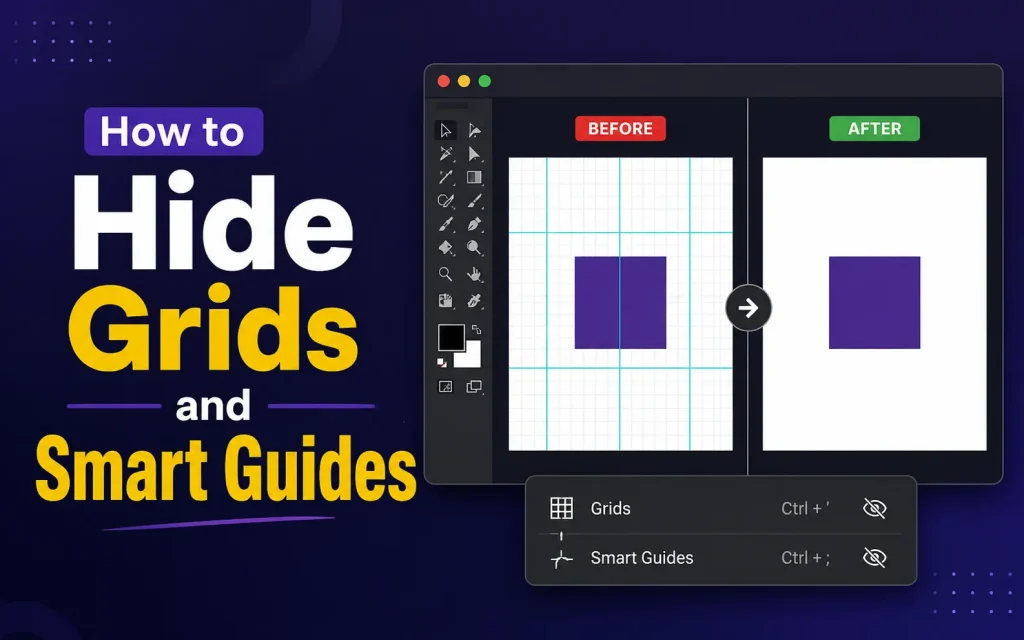
Guides, grids, and Smart Guides are three separate features in Photoshop, and each one has its own visibility toggle. Many tutorials only explain guides and skip the other two, which leaves users confused when lines still appear on their canvas after hiding guides.
Hiding the Grid
- Go to View Show Grid to toggle the grid on or off.
Shortcut: Ctrl + ‘ (apostrophe) on Windows, or Cmd + ‘ (apostrophe) on Mac.
Hiding Smart Guides
Smart Guides appear automatically while you move or align layers and objects.
They disappear on their own once you release the mouse, but you can disable them permanently:
- Open View Show.
- Click Smart Guides to remove the checkmark and turn the feature off.
Quick Comparison: Guides vs Grid vs Smart Guides
| Feature | Purpose | Shortcut to Toggle |
| Guides | Manual lines you place for alignment | Ctrl/Cmd + H |
| Grid | Evenly spaced lines across the canvas | Ctrl/Cmd + ‘ |
| Smart Guides | Temporary lines shown while moving objects | View > Show > Smart Guides |
Hide All Extras at Once Guides Grid Target Path and More
Photoshop groups several on-screen aids under a category called Extras. This includes guides, grids, target paths, layer edges, selection edges, slices, and annotations.
To hide everything in one move:
- Open the View menu.
- Hover over Show.
- Click Extras to remove the checkmark. This hides guides, grid, and every other extra element in a single click.
This is the fastest option when you want a completely clean canvas for a screenshot or client preview, without manually toggling each feature one by one.
Hiding Guides vs Deleting Guides: Know the Difference
Hiding and deleting are not the same action, and mixing them up is a common mistake.
| Action | What Happens | How to Do It |
| Hide guides | Guides stay in the document but become invisible. They reappear after toggling visibility again. | Ctrl/Cmd + H, or View > Show > Guides |
| Delete guides | Guides are permanently removed from the document. | View > Guides > Clear Guides |
| Lock guides | Guides remain visible but cannot be moved or accidentally dragged. | View > Lock Guides (Ctrl/Cmd + Alt/Opt + 😉 |
If your goal is simply a clean view while you keep working on the same layout, hide your guides instead of deleting them. Deleting means you will need to recreate every guide line from scratch.
Common Problems and How to Fix Them
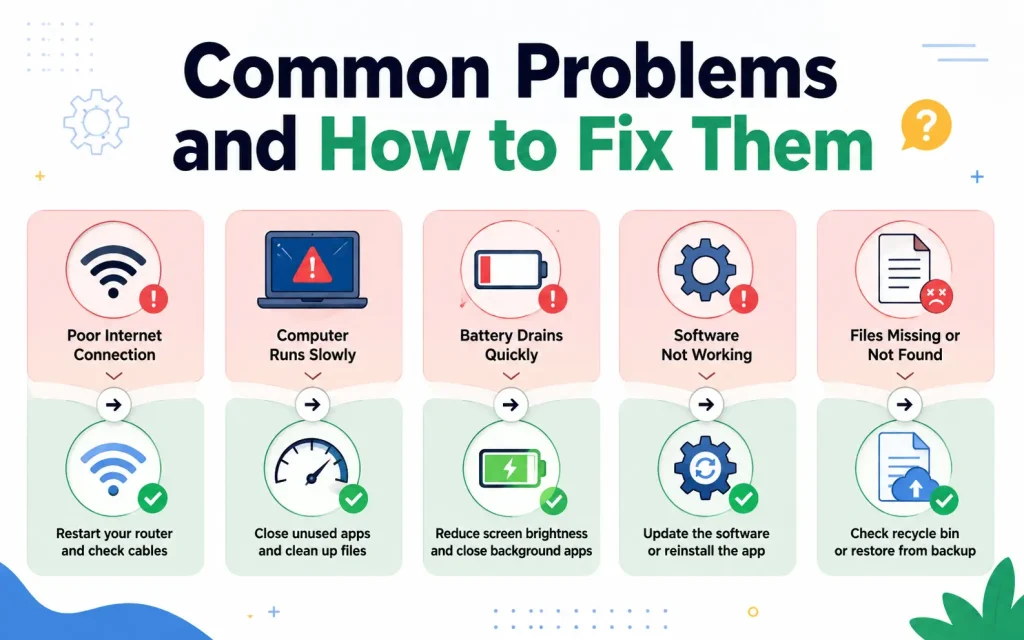
Guides Will Not Hide
- Check whether you are pressing Ctrl/Cmd + H while a text box is active. Click on the canvas first, then try the shortcut again.
- Confirm that View Show Extras is turned on. If Extras is off, the Guides shortcut may not respond as expected.
- Restart Photoshop if the shortcut still does not respond. A rare display refresh bug can cause guides to remain on screen until the canvas redraws.
Cmd + H Hides the Whole App Instead of Guides (Mac Only)
On macOS, Cmd + H is reserved system-wide for hiding the active application. If Photoshop itself disappears when you press the shortcut, use the View > Show > Guides menu command instead, or reassign the shortcut through Edit > Keyboard Shortcuts.
Guides Reappear After Saving or Reopening the File
Hiding guides is a view setting, not a saved document property in older Photoshop versions used with certain file formats. If guides reappear after you reopen a file, this is expected behavior. Use the shortcut again each time you reopen the document, or delete the guides permanently if you no longer need them.
Guides Are Hidden but the Grid Still Shows
This happens because guides and the grid are controlled separately. Turn off the grid using Ctrl/Cmd + ‘ or through View > Show > Extras to hide everything at once.
Hide Guides on Mac vs Windows: Key Differences
| Task | Windows | Mac |
| Hide/show guides | Ctrl + H | Cmd + H |
| Hide/show grid | Ctrl + ‘ | Cmd + ‘ |
| Lock guides | Ctrl + Alt + ; | Cmd + Option + ; |
| Possible conflict | Rare | Cmd + H may hide the app window |
Pro Tips for Working with Guides Like a Professional
- Use Edit Preferences Guides, Grid and Slices to change guide color and style, making them easier to spot while visible and easier to confirm when hidden.
- Lock your guides once your layout is final, so you can keep them visible without the risk of dragging them out of place.
- Save a custom workspace with guides toggled off if you regularly switch between layout work and presentation mode.
- Use View Guides Clear Guides only when you are certain the layout is complete, since this action cannot be undone after closing the file.
- Combine guides with the Snap feature under View Snap To for more precise alignment while guides remain hidden temporarily during placement.
- If you work across multiple monitors, check that the active document window has focus before using the shortcut, since Photoshop applies the toggle to the active canvas only.
FAQs
What is the easiest way to hide guides in Photoshop?
The fastest way is to press Ctrl + ; (Windows) or Cmd + ; (Mac) to toggle guides on and off.
Do guides disappear when I save the file?
No, guides remain in the Photoshop file and only affect your workspace view.
Can I hide guides without deleting them?
Yes, hiding guides only turns them off visually. You can show them again anytime.
Why are guides not showing in my Photoshop file?
Make sure you haven’t toggled them off using View > Show > Guides or the shortcut.
Can I permanently remove guides in Photoshop?
Yes, go to View > Clear Guides to delete all guides from your document.
Final Thought
Hiding guides in Photoshop takes seconds once you know the right shortcut and menu paths. Use Ctrl + H or Cmd + H for instant toggling, View Show Extras to clear your entire canvas of guides and grids together, and the Clear Guides command only when you are ready to remove them for good. Keeping these distinctions in mind will save you time and prevent accidental loss of your layout work.
Whether you use the simple keyboard shortcut or navigate through the View menu, both methods are easy and efficient. The key is to develop a habit of managing your workspace properly so you can switch between designing and reviewing your work smoothly. This not only saves time but also helps you evaluate your design more clearly without unnecessary visual elements.
You May Also Like It:
How to Talk to Your Spirit Guides
How to Find Child Friendly Tour Guides
How to Move Guides in Illustrator
