
How to Use Guides in Adobe Photoshop When working in Adobe Photoshop, one of the most powerful but often overlooked tools is Guides. Whether you’re designing social media posts, thumbnails, banners, or professional graphics (like GFXProjectality-style edits), guides help you achieve perfect alignment, balance, and precision.
If you’ve ever struggled with uneven spacing, misaligned text, or messy layouts guides are the solution.
In this detailed guide, , you’ll learn everything from basics to advanced techniques of using guides in Photoshop for clean and professional GFX designs.
What Are Guides in Photoshop?
Guides are non-printing lines that help you align and organize elements in your design. They don’t appear in the final image but act like a visual ruler or helper.
Think of them like invisible assistants that keep your design neat.
Why Guides Are Important in GFX Design
In GFXProjectality (gaming edits, thumbnails, posters), guides help you:
- Keep text centered perfectly
- Align characters and effects
- Maintain symmetry in layouts
- Create professional compositions
- Improve overall visual balance
Without guides, your design may look random or unpolished.
Types of Guides in Photoshop
Photoshop mainly offers:
Standard Guides
Basic vertical and horizontal lines you drag manually.
Smart Guides
Auto-align helpers that show spacing and alignment dynamically.
Grid System
A full layout structure (like boxes) for precise positioning.
How to Show Rulers (First Step)
Before using guides, enable rulers:
Shortcut:
Ctrl + R (Windows)
This will show rulers on the top and left side.
How to Create Guides in Photoshop
Method 1: Drag from Ruler
- Turn on rulers
- Click on the ruler
- Drag into the canvas
- Drag from left → vertical guide
- Drag from top → horizontal guide
This is the easiest and most commonly used method.
New Guide Option
Go to:
Then choose:
- Horizontal or Vertical
- Position (in pixels, %, etc.)
Example:
- Vertical at 50% = perfect center line
New Guide Layout (Best for GFX)
Go to:
View → New Guide Layout
This lets you create:
- Columns
- Rows
- Margins
- Gutters
Perfect for thumbnails, banners, UI designs.
How to Use Guides in GFXProjectality Designs
Now let’s talk real use cases
Centering Text Perfectly
Create a vertical guide at 50%
Place your text and align it to the guide.
Result:
- ✔ Perfect center alignment
- ✔ Clean professional look
Character Placement
In gaming GFX:
- Place character slightly off-center
- Use guides to maintain spacing
This creates a cinematic look.
Rule of Thirds
Divide your canvas into 3×3 grid using guides.
Place important elements on intersections.
This improves visual appeal automatically.
Smart Guides (Auto Alignment Feature)
Turn on Smart Guides:
View → Show → Smart Guides
Shortcut:
Ctrl + U
Snap Feature (Important Setting)
Enable snapping:
View → Snap
This allows objects to stick to guides automatically.
Also enable:
View → Snap To → Guides
This ensures perfect alignment without manual effort.
Moving Guides
Use Move Tool (V):
- Click on guide
- Drag to reposition
Deleting Guides
To remove a guide:
- Drag it back to the ruler
OR
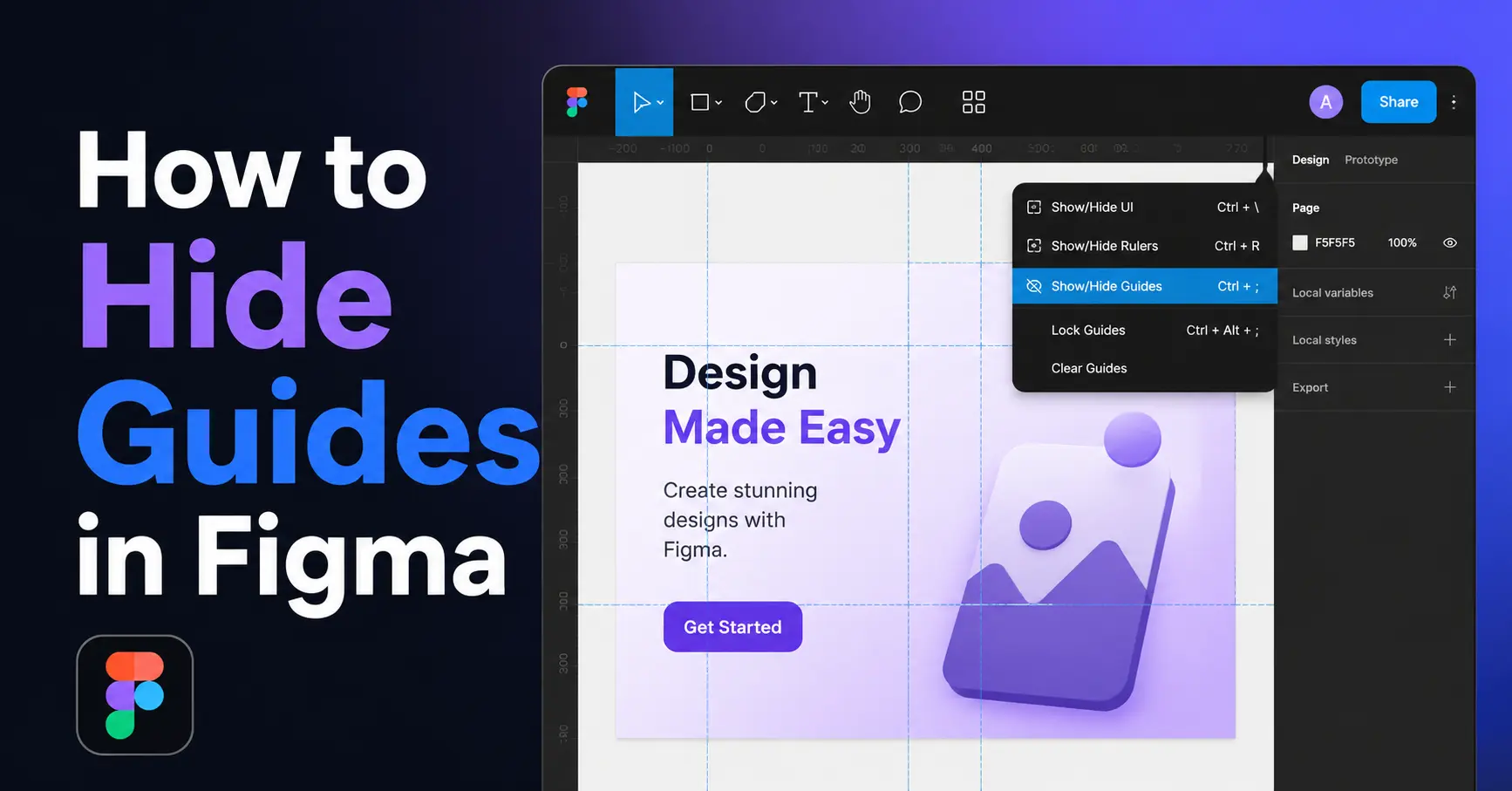
View → Clear Guides
Changing Guide Color
Sometimes guides are hard to see.
Change color:
Advanced Guide Techniques (Pro Level)
Now let’s go deeper into GFXProjectality style
Safe Area for Thumbnails
Create margins using guides.
Keep text inside safe area so it doesn’t get cut off on different screens.
Alignment for Text Effects
When adding glow, stroke, shadows:
- Use guides to keep spacing consistent
- Avoid uneven effects
UI Design & Layouts
Guides are heavily used in:
- Website design
- App UI
- Banner layouts
Common Mistakes Beginners Make
Not using guides at all
Leads to messy design.
Misaligned elements
Looks unprofessional.
Ignoring spacing
Creates cluttered visuals.
Too many random guides
Can confuse instead of helping.
Best Practices for Using Guides
- Use center guides for alignment
- Use grid for structure
- Keep spacing consistent
- Lock guides after setting
- Use Smart Guides for speed
Keyboard Shortcuts Summary

Real Example (YouTube Thumbnail)
Let’s say you’re designing a gaming thumbnail:
- Add center guide
- Place character slightly left
- Add text on right
- Use guides to align text
Result:
Eye-catching and professional thumbnail
Why Professionals Always Use Guides
Designers don’t guess positions—they use guides.
Guides help you:
- Save time
- Improve accuracy
- Maintain consistency
- Look professional
Final Thoughts
Using guides in Adobe Photoshop is far more than just a basic feature—it’s one of those tools that quietly transforms your entire design workflow, especially if you’re working in GFXProjectality-style projects like gaming thumbnails, banners, or social media graphics. When you truly understand how to use guides properly, you stop guessing placements and start designing with precision and intention. Every element.
whether it’s text, a character render, lighting effects, or background layers—falls exactly where it should. This naturally leads to designs that look cleaner, more structured, and visually balanced without you having to constantly adjust things by eye. One of the biggest differences between beginner and professional designers is alignment and spacing, and guides solve both problems effortlessly. They help you maintain equal margins, consistent distances, and perfect centering, which immediately makes your work look more polished and high-quality. Over time, you’ll also notice that guides actually speed up your workflow instead of slowing it down.
because you spend less time fixing mistakes and more time focusing on creativity and effects. At the beginning, using guides might feel like an extra step or even unnecessary, especially if you’re used to freehand placement, but once you build the habit, it becomes second nature. You’ll start setting up your guides automatically before even placing your first element, and your overall design quality will improve without extra effort. In the long run, mastering guides isn’t just about alignment—it’s about developing a professional mindset where every part of your design has purpose, structure, and visual harmony.