
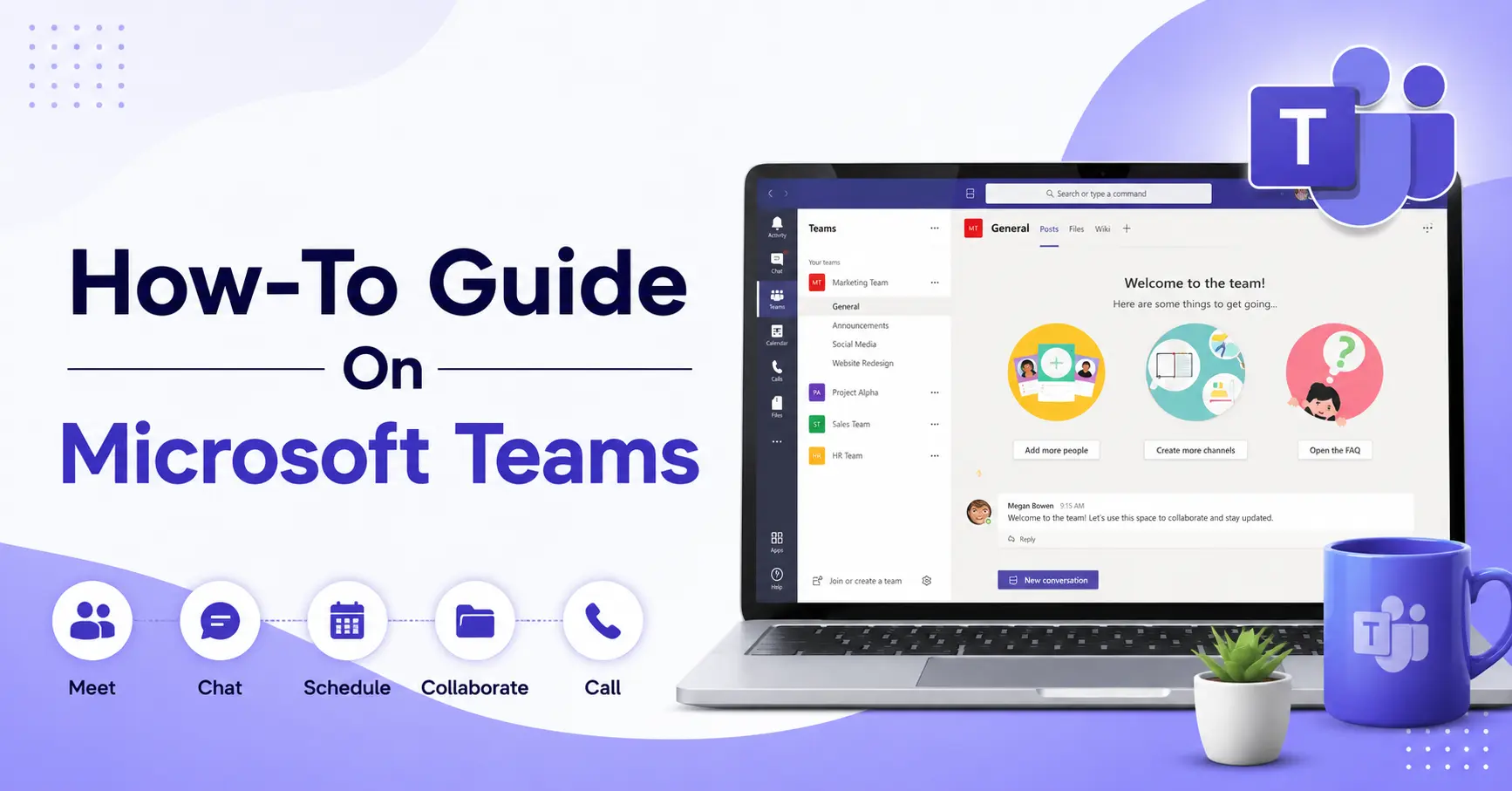
How-To Guide On Microsoft Teams if you have ever found yourself switching between email, video calls, and shared documents all at once, you already know the pain that Microsoft Teams was built to solve. With over 320 million monthly active users worldwide, Teams has become the central hub for how to modern teams communicate, collaborate, and get work done.
This guide is for anyone who wants to get the most out of Microsoft Teams, whether you are logging in for the very first time or looking to unlock features you have never touched. Every section is written in plain English, with clear steps and practical tips that go beyond what most guides cover.
What Is Microsoft Teams
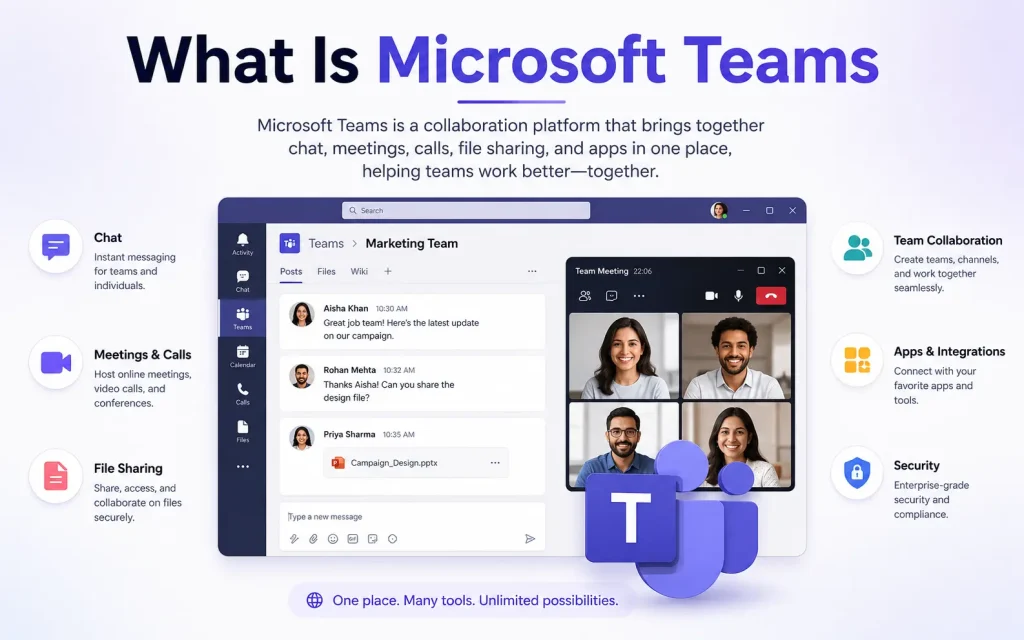
Microsoft Teams is a collaboration platform included with Microsoft 365. It brings together instant messaging, video meetings, file sharing, and third-party apps into one workspace. Think of it as your office, your meeting room, and your filing cabinet, all rolled into one application.
Teams replaced Skype for Business in 2021 and has since expanded into a platform that connects with SharePoint, OneNote, Planner, Power BI, and dozens of other tools.
Key things Teams lets you do:
- Chat one-on-one or with groups instantly
- Host and join video or audio meetings
- Organise projects using channels and tabs
- Co-edit Word, Excel, and PowerPoint files in real time
- Make and receive phone calls (with the right licence)
- Automate tasks using Power Automate integrations
How to Get Started: Sign In and Set Up Your Profile
Step 1: Download and Install Teams
Teams works on Windows, Mac, iOS, and Android. You can also use it directly in your browser at teams.microsoft.com without installing anything.
- On Windows: open the Start menu, search for Microsoft Teams, and click to open. If it is not installed, download it from microsoft.com/en-us/microsoft-teams.
- On Mac: go to your Applications folder and open Microsoft Teams, or download from the Microsoft website.
- On mobile: search for Microsoft Teams in the App Store or Google Play and install it.
Step 2: Sign In
Open Teams and enter your work or school email address. If your organisation uses Microsoft 365, your IT admin will have set up your account already. If you are using the free version, sign up at teams.microsoft.com.
Step 3: Set Up Your Profile
Your profile tells colleagues who you are and how available you are. Here is how to make it useful:
- Click your profile picture (or initials) in the top right corner.
- Select “Edit profile” to add a photo, job title, and contact details.
- Set your status: Available, Busy, Do Not Disturb, Be Right Back, or Appear Away.
- Add a status message so colleagues know what you are working on. For example: “In deep work until 3pm. Ping me for urgent matters.”
Pro tip most guides skip: You can schedule your status to change automatically. Click your profile icon, then “Set status message,” and toggle on “Show when status changes.” This is useful when you block focus time on your calendar.
Understanding the Teams Interface
The left-hand sidebar is your main navigation. Here is what each icon does:
- Activity: Shows all your notifications, mentions (@yourname), and replies in one feed. Check this first thing every morning.
- Chat: All your one-on-one and group conversations, separate from channel conversations.
- Teams: Your workspace, organised into teams and channels. This is where most project work happens.
- Calendar: Syncs with your Outlook calendar. Schedule and join meetings from here.
- Calls: Make voice and video calls, view your call history, and set up voicemail.
- Files: See all files shared across your teams and channels in one place.
- Apps: Add tools and integrations like Planner, Trello, Polly, and more.
How to Create and Manage Teams
What Is a Team
A team is a group of people working toward a shared goal. It could be a department, a project, or a whole company. Each team has its own channels, files, and settings.
How to Create a Team
- Click “Teams” in the left sidebar.
- Click “Join or create a team” at the bottom of the panel.
- Choose “Create team.”
- Pick a type: Private (members must be added by you), Public (anyone in your org can join), or Org-wide (everyone is automatically included).
- Give your team a name, add a description, and click “Create.”
- Add members by searching their names or email addresses.
How to Manage Team Settings
Click the three dots (…) next to your team name and select “Manage team.” From here you can:
- Add or remove members and change their roles (Member or Owner)
- Update the team name, description, and privacy settings
- Control what members can do, such as adding channels, posting messages, or using bots
- View analytics on team activity
Something competitors miss: Setting up team roles properly from the start saves a lot of headaches later. Assign at least two owners per team so the team does not become unmanaged if someone leaves.
How to Use Channels Effectively
What Is a Channel
A channel is a focused space inside a team for a specific topic, project, or department. Every team starts with a “General” channel, but you should create more to keep conversations organised.
Types of Channels
- Standard channels: Visible to all team members.
- Private channels: Only visible to the members you invite. Useful for sensitive discussions.
- Shared channels: Can include people from outside your organisation without adding them as guests. This is a newer and often overlooked feature.
How to Create a Channel
- Click the three dots (…) next to your team name.
- Select “Add channel.”
- Give it a name and description, choose Standard or Private, and click “Create.”
Tips for Naming and Organising Channels
Keep channel names short and action-oriented. Good examples: “Marketing-Campaigns,” “Dev-Bug-Reports,” “Finance-Q3.” Avoid vague names like “General 2” or “Misc.”
Pin the most important channels to the top of your list by right-clicking the channel name and selecting “Pin.”
How to Chat in Microsoft Teams
Start a One-on-One Chat
- Click the “Chat” icon in the left sidebar.
- Click the pencil/compose icon at the top.
- Type the name or email of the person you want to message.
- Write your message and press Enter or click Send.
Start a Group Chat
Follow the same steps, but add multiple names in the “To” field. Give the group chat a name by clicking the pencil icon at the top of the chat so it is easy to find later.
Format Your Messages
Click the formatting button (the letter “A” with a pen icon) under the message box to access rich formatting. You can:
- Use bold, italic, and underline
- Add bullet points and numbered lists
- Insert tables
- Mark a message as Important or Urgent
Urgent messages send repeated notifications to the recipient every 2 minutes for 20 minutes. Only use this for genuinely urgent situations.
Use @mentions to Get Attention
Type @ followed by a person’s name to notify them directly. You can also use:
- @team to notify all members of a team
- @channel to notify everyone who follows that channel
- @here (in some configurations) to alert active members only
React to Messages
Hover over any message and click the emoji face icon to add a reaction. This is a quick way to acknowledge something without sending a separate reply and cluttering the thread.
Save Messages for Later
Hover over a message, click the three dots (…), and choose “Save this message.” Access saved messages by clicking your profile icon and selecting “Saved.”
How to Schedule and Run Meetings in Teams
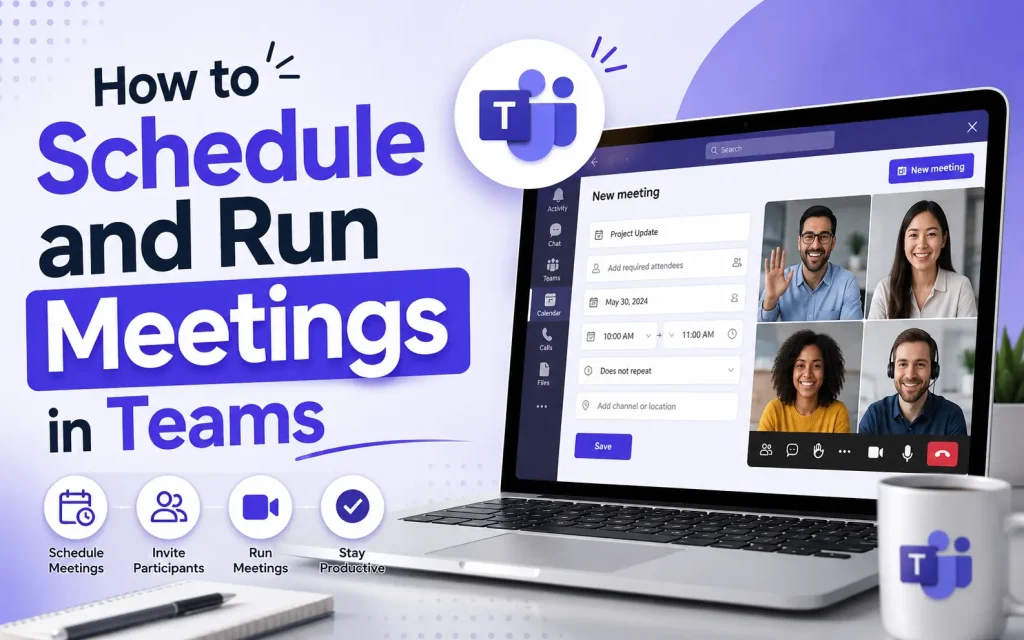
Schedule a Meeting
- Click “Calendar” in the left sidebar.
- Click “New meeting” in the top right.
- Add a title, date, time, and duration.
- In the “Add required attendees” field, type the names of people to invite.
- Write a description or agenda in the body.
- Click “Send.”
Invited attendees receive a calendar invite with a “Join Microsoft Teams Meeting” link automatically included.
Join a Meeting
You can join from the calendar, from a meeting invite link, or from the meeting chat notification. You have the option to join from your browser, desktop app, or mobile.
Before entering, you will see a preview screen where you can:
- Turn your camera on or off
- Mute or unmute your microphone
- Choose your audio device
- Apply a background blur or virtual background
Run an Effective Meeting: Controls You Should Know
Once in a meeting, the toolbar at the bottom gives you everything you need:
- Mute/Unmute: Toggle your microphone. Use the keyboard shortcut Ctrl+Shift+M (Windows) or Cmd+Shift+M (Mac) to quickly toggle.
- Camera on/off: Toggle your video.
- Share screen: Share your entire screen, a specific window, or a PowerPoint presentation. You can also give another participant control of your shared screen.
- Chat: Open the in-meeting chat for links, notes, or follow-ups that everyone can refer to.
- Participants: See who is in the meeting, mute others if you are the organiser, and manage the lobby.
- Raise hand: Let the organiser know you want to speak without interrupting.
- Reactions: Send live emoji reactions visible to all participants.
- Breakout rooms: Split participants into smaller groups for workshops or discussions. Only the meeting organiser can create and manage these.
- More options (…): Access polls, whiteboard, meeting notes, spotlight a speaker, and more.
Record a Meeting
Click “More options” (…) then “Start recording.” All participants are notified when recording begins. The recording is saved automatically to Microsoft Stream (or OneDrive, depending on your organisation’s settings) and a link is shared in the meeting chat when it ends.
What most guides do not tell you: As the organiser, you can set up automatic meeting recordings so you never forget to hit record. Go to your meeting settings before the meeting starts and enable “Record automatically.”
Use Meeting Notes
Click “Meeting notes” in the meeting toolbar. Notes are shared with all participants in real time and are saved to the meeting chat after the session ends. This replaces the need for someone to email minutes afterwards.
Transcriptions and Captions
In the meeting, click “More options,” then “Turn on live captions” to see a real-time transcription at the bottom of the screen. This is helpful for accessibility, noisy environments, or non-native speakers. If your organisation enables it, a full transcript is also saved with the recording.
How to Share and Collaborate on Files
Share a File in a Chat or Channel
- Click the paperclip (Attach) icon under the message box.
- Choose the file location: your computer, OneDrive, or the team’s SharePoint site.
- Select the file and click Send.
When you share a file from OneDrive or SharePoint, teammates can open and edit it directly in Teams without downloading it. Changes are saved automatically and everyone sees the latest version.
Co-Edit Documents in Real Time
Click any Word, Excel, or PowerPoint file shared in a channel or chat. It opens inside Teams. Multiple people can edit at the same time. You can see who is editing and where their cursor is, just like Google Docs.
Use the Files Tab in a Channel
Every channel has a “Files” tab at the top. All files shared in that channel appear here, organised in folders. You can create new folders, upload files directly, and even open the full SharePoint folder behind the channel.
Underrated feature: Click “Open in SharePoint” from the Files tab to access version history, set permissions on individual files, and use SharePoint’s full document management features.
How to Make Calls in Teams
If your organisation has a Teams Phone licence, you can make and receive regular phone calls through Teams, replacing your desk phone entirely.
Make a Call
- Click “Calls” in the left sidebar.
- Use the dial pad to type a number, or search for a contact.
- Click the phone or video icon to start the call.
Check Your Voicemail
Missed calls and voicemails appear in the “Calls” section under “Voicemail.” You can listen to voicemails, read an auto-generated transcript, and reply directly from Teams.
Productivity Features Most People Overlook
Tabs: Turn Any Tool Into Part of Your Channel
Every channel can have custom tabs at the top. Click the “+” icon next to the existing tabs to add things like:
- A specific OneNote notebook
- A Planner board for task management
- A website or SharePoint page
- A Power BI report
- A shared Excel spreadsheet
This turns your channel into a mini workspace with everything your team needs in one place.
Tags: Message the Right People Fast
Rather than @mentioning individuals one by one, create tags to group people by role or function. For example, create a “Designers” tag and @Designers to instantly reach everyone in that group, regardless of which channel you are posting in.
To create a tag: click the three dots (…) next to the team name, select “Manage tags,” and click “Create tag.”
Activity Feed Filters
The Activity feed can get overwhelming. Click the filter icon at the top of the feed to show only specific types of notifications, such as only @mentions or only replies to your posts.
Search: More Powerful Than You Think
The search bar at the top of Teams is not just for finding messages. Type a keyword and then filter by Messages, People, or Files.
You can also use keyboard commands:
- Type /files to jump straight to your files
- Type /goto to navigate to a channel
- Type /saved to see saved messages
- Type /keys to see all available keyboard shortcuts
Loop Components (Collaborative Blocks)
Loop components are shareable, interactive blocks you can insert into a Teams chat. Examples include bullet lists, tables, and task lists that everyone in the conversation can edit at the same time. To insert one, click the Loop icon (the three overlapping circles) under the message box.
Microsoft Teams Keyboard Shortcuts Worth Memorising
These shortcuts work on Windows and many also work on Mac (swap Ctrl for Cmd):
| Action | Shortcut (Windows) |
|---|---|
| Mute/unmute in a meeting | Ctrl+Shift+M |
| Turn camera on/off | Ctrl+Shift+O |
| Accept a video call | Ctrl+Shift+A |
| Decline a call | Ctrl+Shift+D |
| Go to Search | Ctrl+E |
| Start a new chat | Ctrl+N |
| Open Settings | Ctrl+comma (,) |
| Mark message as read | Ctrl+Shift+Enter |
| Reply to a thread | R (when message is selected) |
Microsoft Teams for Remote and Hybrid Teams: Practical Strategies
Many Teams guides explain what buttons do. This section covers how to actually use Teams well in the real world.
Set Clear Communication Norms
Decide as a team which conversations belong in chat (quick, informal, time-sensitive) and which belong in channels (project updates, shared reference information). Without this, everything ends up in chat and important context gets lost.
Use Status Messages and Do Not Disturb
Remote work blurs boundaries. Set your status to “Do Not Disturb” during focused work time. You can allow specific contacts to still reach you with urgent messages even when DND is on. Go to Settings, then Notifications, then set up “Priority access.”
Pin Important Channels and Chats
Right-click any channel or chat and select “Pin.” Pinned items appear at the top of your list, so you do not waste time scrolling to find the things you use most.
Use Channel Announcements for Key Updates
Instead of a standard message, post an announcement in a channel. Click the formatting button under the message box, then click the layout dropdown and choose “Announcement.” You can add a headline, a banner colour, and a subheading. Announcements are visually distinct and much harder to miss in a busy channel.
Turn Off Notifications You Do Not Need
Go to Settings (click your profile icon, then Settings, then Notifications). You can customise notifications for every scenario: mentions, replies, reactions, channel messages, and more. Reducing unnecessary notifications improves focus without missing what matters.
Microsoft Teams Security and Privacy: What You Should Know

This is an area most beginner guides skip entirely, but it matters.
- All Teams content is encrypted in transit and at rest using Microsoft’s enterprise-grade security.
- Your administrator can control who can add external users (guests), which apps can be installed, and what data is retained or deleted.
- You can check if a meeting is being recorded: a red recording indicator appears at the top of the screen.
- External guests in a team have a “Guest” label next to their name so you always know who is internal and who is not.
- You can verify the identity of someone you are chatting with by clicking their name and checking their profile details and organisation.
Common Microsoft Teams Problems and How to Fix Them
Problem: Echo or feedback during meetings Fix: Only one device should have audio active in the same room. Mute other devices or use headphones.
Problem: Camera or microphone not working Fix: Click your profile icon, go to Settings, then Devices, and check that the correct camera and microphone are selected. Make sure the Teams app has permission to access these in your computer’s privacy settings.
Problem: Missing notifications Fix: Go to Settings, then Notifications, and check your notification preferences. Also make sure your operating system notification settings allow Teams to send alerts.
Problem: Files not syncing Fix: Teams files are stored on SharePoint. If sync is broken, click “Files” in the channel, then “Open in SharePoint,” and re-sync the library using the “Sync” button.
Problem: Teams running slowly Fix: Clear the Teams cache. Close Teams completely, navigate to %appdata%\Microsoft\Teams on Windows (or ~/Library/Application Support/Microsoft/Teams on Mac), delete the contents of the Cache folder, and restart Teams.
What’s New in Microsoft Teams in 2025
Microsoft continues to add features at a rapid pace. Notable updates in 2025 include:
- Microsoft 365 Copilot in Teams: AI-powered meeting summaries, suggested follow-up actions, and real-time conversation suggestions. If your organisation has a Copilot licence, you can ask Copilot to summarise what was discussed in a meeting, catch up on a channel you missed, or draft a reply.
- Teams Phone improvements: Richer call queues, auto-attendant updates, and better integration with third-party contact centre tools.
- New Teams client: The rebuilt Teams app offers faster performance and lower memory usage compared to the classic version, which reached end of support in 2024.
- Collaborative notes: Improved shared note-taking during meetings, with AI-assisted action item extraction.
- Frontline worker features: Shift scheduling, task publishing, and walkie-talkie functionality designed for workers who are not at a desk.
Frequently Asked Questions
Is Microsoft Teams free?
Yes, there is a free version of Teams with basic chat and meeting features. For full access to all features, including longer meeting recordings, advanced admin controls, and integration with the full Microsoft 365 suite, you need a paid Microsoft 365 subscription.
Can I use Teams without an Office 365 account?
You can use Teams Free with any Microsoft account. However, to access most workplace integrations and admin features, you will need a Microsoft 365 work or school account.
How many people can join a Teams meeting?
Up to 1,000 participants can join a standard Teams meeting. For larger events, Teams offers Live Events (now called Town Halls) which support up to 10,000 attendees.
What is the difference between a chat and a channel conversation?
Chats are private conversations between individuals or small groups. Channel conversations are visible to all members of that channel and are the right place for project discussions, team announcements, and shared reference information.
Can people outside my organisation join a Teams meeting?
Yes. External users can join a Teams meeting via a link without needing a Teams account. They join as guests and wait in the lobby until the organiser admits them.
Final Thoughts
Microsoft Teams is one of those tools that rewards the more you put into it. Most people use 20% of its features and wonder why collaboration still feels messy. The strategies and steps in this guide will help you and your team use Teams as it was designed: as a single, integrated workspace rather than just another messaging app.
Start with the basics, set up your channels well from day one, and build habits around clear communication norms. The advanced features, from Loop components to Copilot summaries, will feel natural once the fundamentals are in place.
You May Also Like It:
How to Use ChatGPT for Style Guides
